A JPG text remover for text that is already part of the pixels
A flattened JPEG does not normally keep added text as a separate editable layer. Once a caption, date, label, or headline has been exported into the image, deleting the words also removes the pixels in that area. A JPG text remover therefore has to rebuild the selected patch from nearby image information.
Use this page when you need to remove text from a JPEG file that you own or are authorized to edit and you want to keep the rest of the image. It is useful for captions you added, old campaign copy on your own graphic, date stamps, and other small text overlays.
How to remove text from JPG images
- Open the image file. Choose a file up to 20 MB and 24 megapixels.
- Zoom into the text. Look beyond the obvious letters for soft halos, blocky compression, outlines, or shadows.
- Brush over the full text area. Select the letters and their visible edge without masking a large part of the surrounding image.
- Remove the selected text. Process the selection and let the nearby image guide the reconstruction.
- Inspect at full size. Check texture, straight lines, skin, reflections, and product edges near the former text.
- Save as JPG or PNG. Choose the output that fits what you plan to do next.
Why JPG compression matters when you remove text
JPEG is a lossy image format. When the file is saved, fine detail is compressed. High-contrast lettering can develop soft color fringes, ringing, or small blocks around its edges.
That means a brush that covers only the center of each letter can leave part of the compressed text edge behind. When you clean text from compressed photo files, zoom in and include the visible halo or shadow that belongs to the letters.
A heavily compressed image can also contain texture that was not present in the original source image. The text can still be removed, but the cleaned patch should be compared with the nearby compression pattern rather than with an imagined perfect original.
JPG example: clean export versus heavy compression
Cleaner JPG
In a relatively clean file, letter edges are easier to identify. Use a tight brush and check whether the rebuilt region matches the surrounding tone and texture.
Heavily compressed JPG
In a lower-quality file, the text may have blocky or blurred edges. Select the complete visible fringe, then inspect whether the repaired area blends with the compression already present around it.
Key lesson: Removing text does not reverse JPG compression. The goal is to clean the selected words while keeping the surrounding image visually consistent.
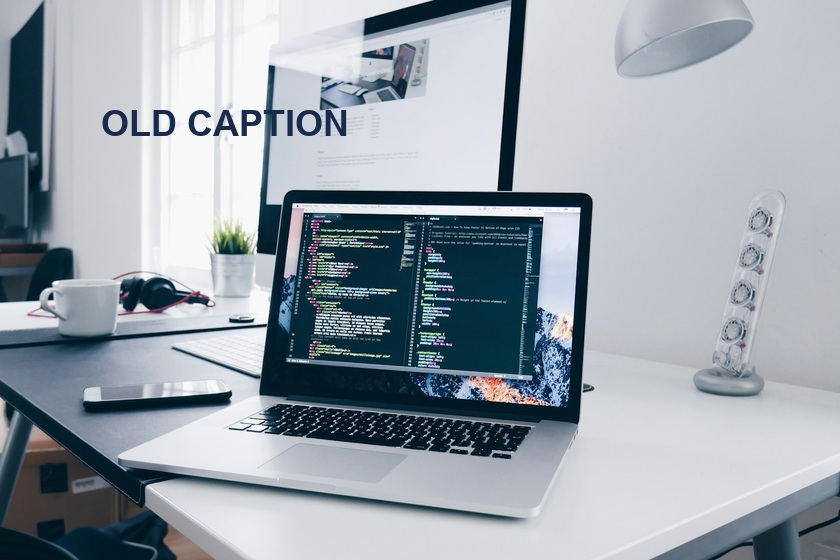 Before
 After
After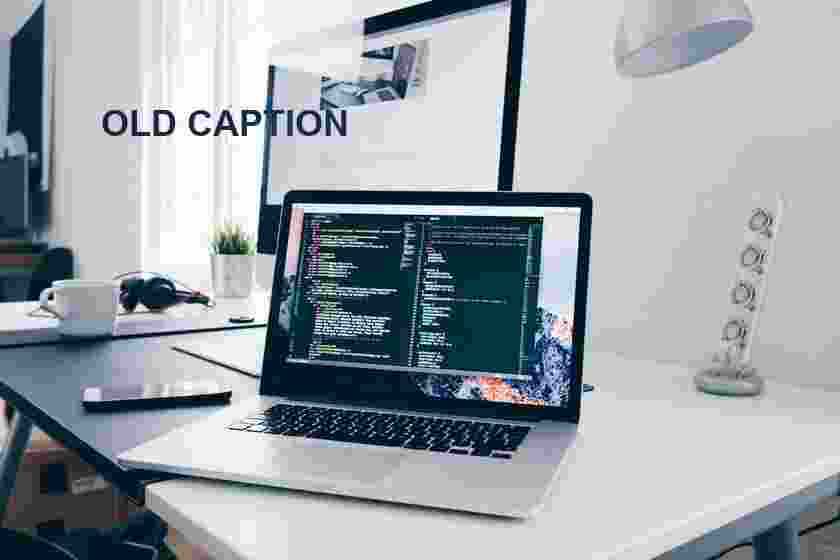 Before
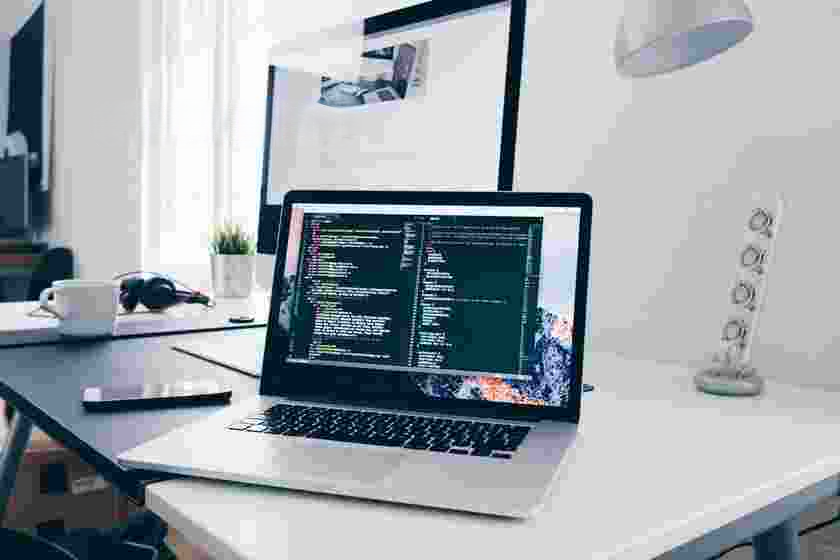 After
AfterText was added to licensed source photos for these tests. The results were made with the local model available in the tool. Review your own image before saving; detailed areas can need a second edit.
JPEG input and output facts
- Input: JPG, JPEG, PNG, or WebP
- Maximum file size: 20 MB
- Maximum image size: 24 megapixels
- Output: JPG or PNG
- Canvas size: the downloaded image keeps the working image dimensions
- Processing: the image remains in your browser
- Account: not required
If metadata such as EXIF information matters to your workflow, keep your original source file. The downloaded result is a newly created image file; do not rely on it to preserve every piece of metadata from the source.
Frequently asked questions
Can I remove text from a JPG online without Photoshop?
Yes. Open the JPG, brush over the text, process the selected area, review the result, and download it as JPG or PNG. No desktop editor is required for this workflow.
Is JPG the same as JPEG for this tool?
Yes. JPG and JPEG refer to the same common image format for this purpose. The tool accepts JPEG image files and lets you clean text from the visible pixels.
Why is there a faint border after I remove text from JPG images?
The border may come from a text shadow, outline, anti-aliased edge, or JPG compression around the letters. Undo the result, zoom in, and include the complete visible fringe in your brush selection.
Will the output keep the original JPG metadata?
Do not assume that it will. The edited result is created as a new JPG or PNG file. Keep the original if you need its original EXIF or other embedded metadata.
Should I download JPG or PNG after removing text?
Choose JPG when you need a conventional photo file and modest file size. Choose PNG when you prefer a lossless output for further editing. The best choice depends on what you plan to do with the result.
Remove text from your JPG
Choose a JPG you own, brush over the words, review the repaired area at full size, and download the cleaned image.