What removing text actually means
When text has already been exported into a JPG, PNG, WebP, screenshot, or flattened graphic, the letters are part of the image pixels. There is no hidden text layer to delete.
That means removing text from an image is a reconstruction task. The selected letters are cleared and the missing area is rebuilt from nearby visual information. The tool can create a plausible patch, but it cannot reveal the exact original pixels that existed before the text was added.
Understanding this distinction helps you decide when a quick browser workflow is enough and when a manual image editor may be the better choice.
Method: remove text from an image in your browser
1. Choose the image
Open a JPG, PNG, or WebP image that you own or have permission to edit. For this tool, the file can be up to 20 MB and 24 megapixels.
Keep the original file. A cleaned result is a new image, and you may want the untouched source later.
2. Zoom into the unwanted text
Before you brush, inspect the complete text area. Look for:
- shadows behind the letters
- outlines or strokes
- soft anti-aliased edges
- compression blocks around JPG text
- small dots, punctuation, or handwritten tails
If you select only the obvious center of the letters, part of the text can remain visible.
3. Brush over only the text you want to remove
Use a brush slightly wider than the visible lettering. The goal is to remove text without masking more of the surrounding image than necessary.
A tight selection matters because the selected area is the part that will be reconstructed. If you paint over a face, product edge, hand, line, or other detail, that detail can also change.
4. Process the selected area
Run the text removal after the mask covers the complete unwanted text. The image stays in your browser while the selected region is rebuilt.
For a small caption or date stamp, one pass may be enough. For irregular handwriting or a text shadow, a second narrow pass can be easier to control than one large selection.
5. Review the result at full size
Do not judge only from a small preview. Zoom in and compare the repaired area with what surrounds it.
Check:
- straight lines for bends or breaks
- faces and hands for changed detail
- fabric, grass, hair, or foliage for smearing
- product edges for softened outlines
- gradients for rectangular patches
- JPG images for compression that no longer matches nearby pixels
If the repair stands out, undo it and try a smaller mask.
6. Download the cleaned image
When the result looks right, save it as JPG or PNG. Keep the original file separately if you need its original metadata or an untouched source.
When a browser text remover is a good fit
A browser workflow is a practical choice when:
- the text occupies a relatively small part of the image
- the surrounding background is simple or repetitive
- you want to remove a caption, date stamp, handwritten note, or temporary line you added
- you do not need a layered project file
- you want a quick one-off cleanup without learning a full desktop editor
For these jobs, the main task is usually careful selection and review rather than complex retouching.
When a manual editor may be better
A full image editor may give you more control when:
- large text covers important image content
- the words cross a face, hand, product, or detailed subject
- exact straight lines or geometry must be rebuilt
- the missing region needs cloning from a specific source area
- you need layers, masks, color correction, or several linked edits
- the result must be retouched pixel by pixel
The browser tool is not a replacement for every Photoshop workflow. It is a focused option for removing selected text when the surrounding image provides enough information for a clean repair.
Three examples to learn from
Easy case: date stamp over open sky
The text is small and the nearby sky contains similar color and texture. Brush over the complete digits and inspect the repaired grain.
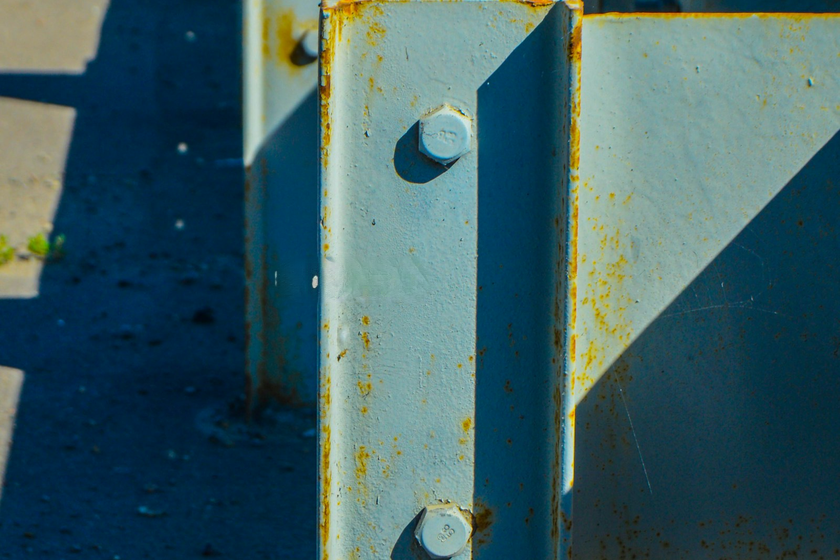
Review-carefully case: date stamp across a guardrail
The date stamp crosses a straight guardrail edge. Remove the stamp, then zoom in and check whether the line continues naturally through the rebuilt region.
Harder case: writing on a scanned photo
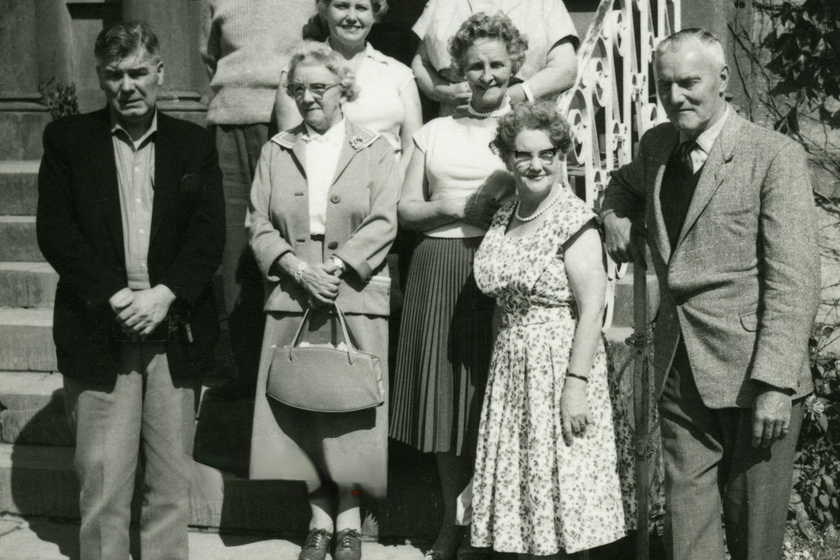
The writing sits on an older scanned photograph with visible grain and subject detail. A narrow selection can help, but the rebuilt patch may still look smoother than nearby areas.
These examples show why the background matters more than the number of letters.
 Before
 After
After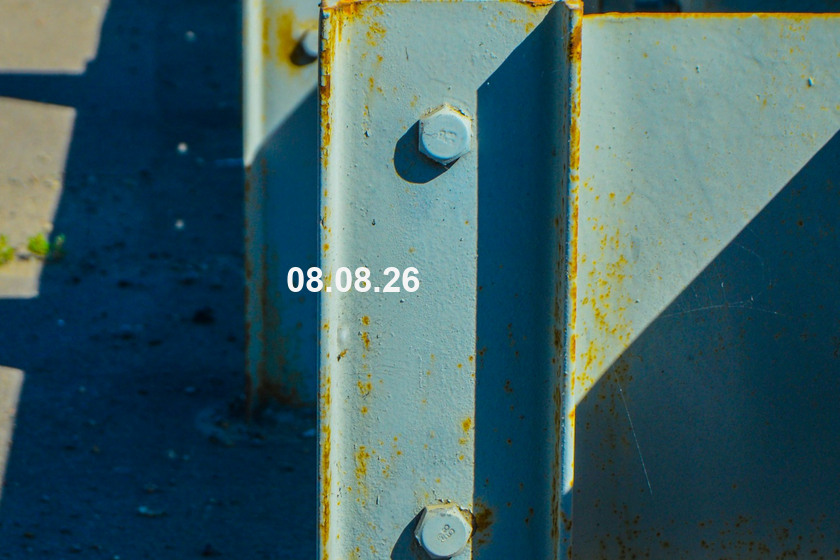 Before
 After
After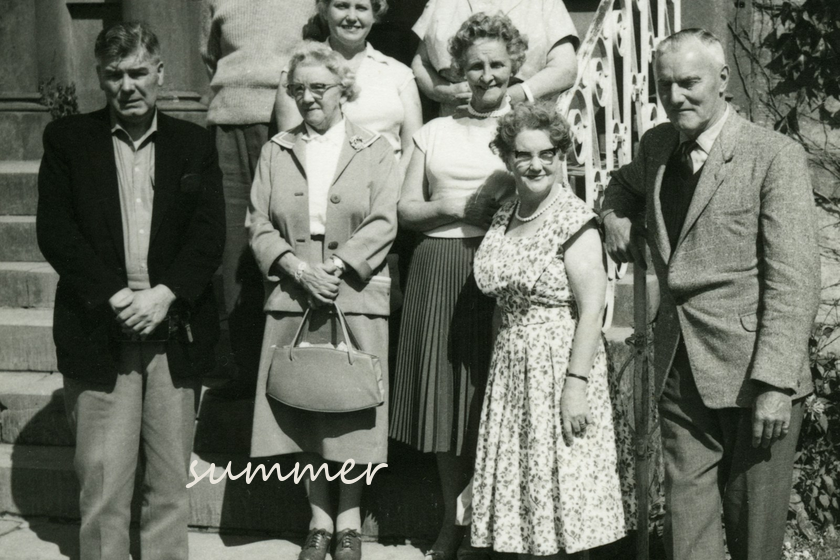 Before
 After
AfterText was added to licensed source photos for these tests. The results were made with the local model available in the tool. Review your own image before saving; detailed areas can need a second edit.
Privacy and file limits
The browser tool accepts JPG, PNG, and WebP images up to 20 MB and 24 megapixels. You can download the reviewed result as JPG or PNG.
The image pixels, brush selection, filename, and result stay in your browser during text removal. No account is required.
Use the tool only for images you own or are authorized to modify. Do not use it to alter identity documents, official records, watermarks, rights-management marks, or content in a way that could mislead another person.
Frequently asked questions
What is the easiest way to remove text from an image without Photoshop?
For a small text overlay, use a browser text remover: open the image, zoom in, brush over the complete text, process the selection, and inspect the repaired background before downloading.
Can I remove text from a photo without cropping it?
Yes. Instead of cutting away part of the photo, select the text itself and rebuild that area. This is especially useful for a date stamp or caption near an edge you want to keep.
Can I remove text from JPG, PNG, and WebP images?
Yes. The tool accepts JPG, PNG, and WebP. JPG compression can create soft fringes around text, so inspect the letter edges closely before processing.
Why is text harder to remove from some images?
The result depends on what the text covers. A plain wall contains predictable nearby information. A face, hand, patterned fabric, or sharp product edge contains detail that is harder to reconstruct convincingly.
Does removing text reveal what was originally behind it?
No. Once text has been flattened into the image, the exact hidden pixels are not available. The selected area is reconstructed from nearby visual information.
Is Photoshop better for difficult repairs?
A manual editor can be better when you need precise cloning, layer control, geometric correction, or detailed retouching. A browser tool is more convenient for small, well-defined text-removal tasks.
Remove text without installing Photoshop
Open an image you are allowed to edit, select only the words you want gone, and review the rebuilt area before downloading the result.