
Reuse a product photo after the campaign copy has expired
A product photo can remain useful long after a sale line, launch message, color note, or seasonal headline becomes outdated. If the underlying product image is yours or you have permission to modify it, removing temporary text can let you reuse the visual without rebuilding the entire layout.
This page is for text that your team or an authorized designer added to the image. It is not for removing someone else’s watermark, rights-management mark, required product information, or branding you are not permitted to alter.
How to remove text from a product image
- Open the product image. Use a JPG, PNG, or WebP file up to 20 MB and 24 megapixels.
- Zoom into the campaign text. Identify the complete letters, outline, shadow, or background badge.
- Brush over the text. Keep the selection as close to the words as possible, especially near packaging, hardware, fabric, or product edges.
- Process the selected area. The tool rebuilds the marked region from nearby image detail.
- Inspect the product. Check straight edges, logos you are keeping, reflections, shadows, highlights, and repeated textures.
- Retry with a tighter selection when needed. A smaller edit is often easier to review than one large masked block.
- Download the cleaned product image. Save the result as JPG or PNG.
Product image examples
Example 1: Promo text on a plain studio background
A short line such as “NEW COLOR” or a temporary campaign message placed beside the product is a strong use case when the background is simple.
Review point: Check that the cleaned background does not contain a rectangular patch or a sudden change in gradient.
Example 2: Text close to a product edge
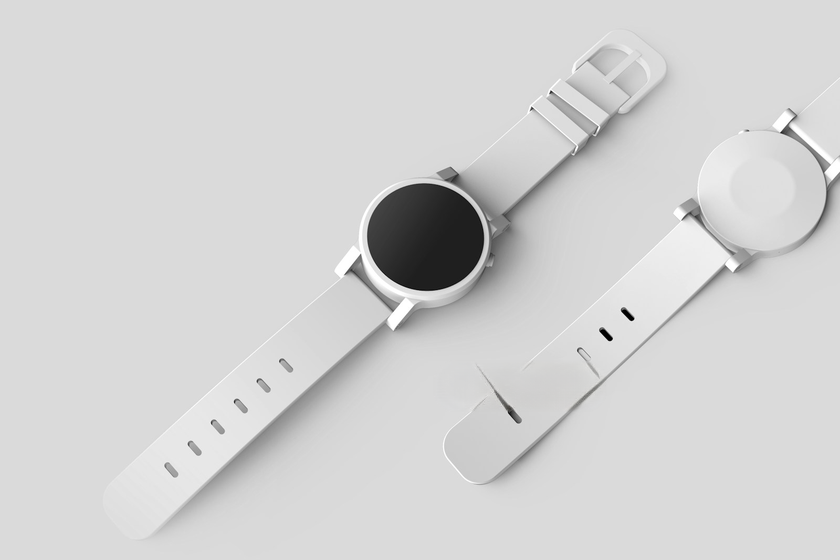
Text that touches a watch, shoe, bottle, device, or package needs a more careful selection.
Review point: Zoom in on the product silhouette. A straight edge, curve, strap, cap, or corner should keep its original shape after the text is removed.
Example 3: Text over shadow or reflection
Studio product photos often contain soft shadows and reflections. Removing text from a product image in these areas is possible, but the repaired light transition should be reviewed closely.
Review point: Look for breaks in shadow direction, duplicated highlights, or abrupt changes in reflection.
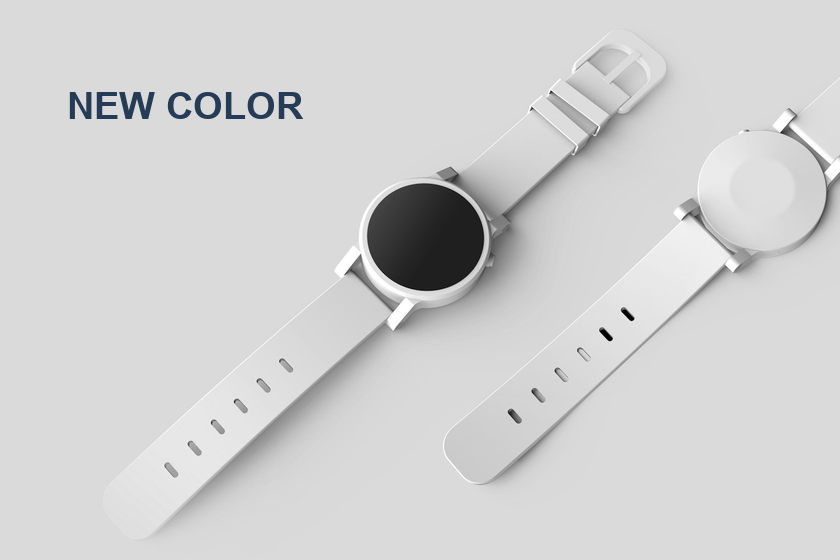 Before
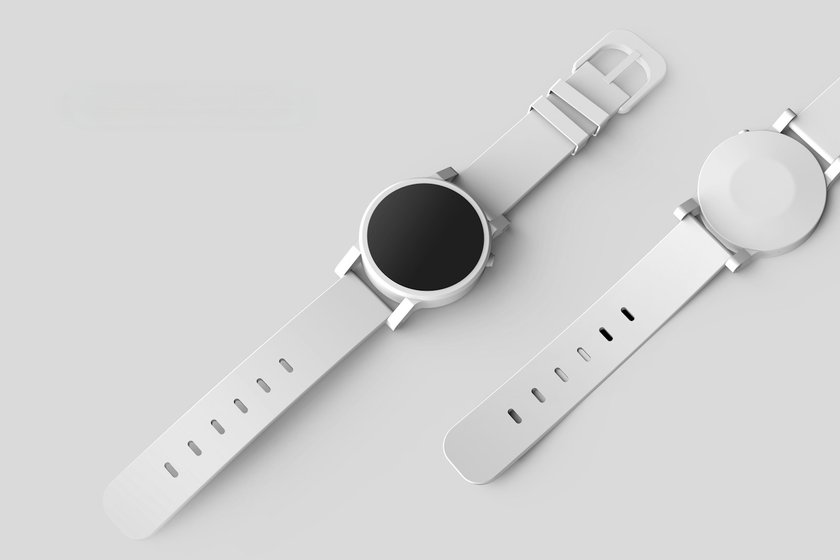 After
After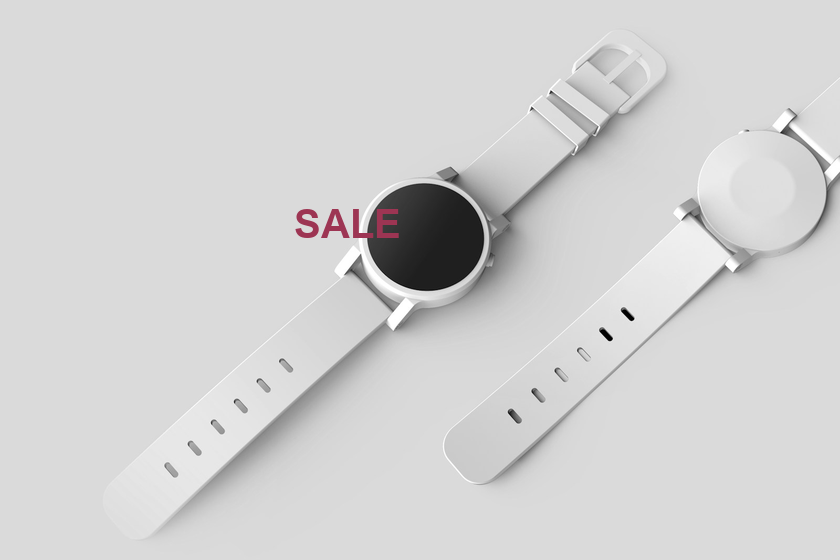 Before
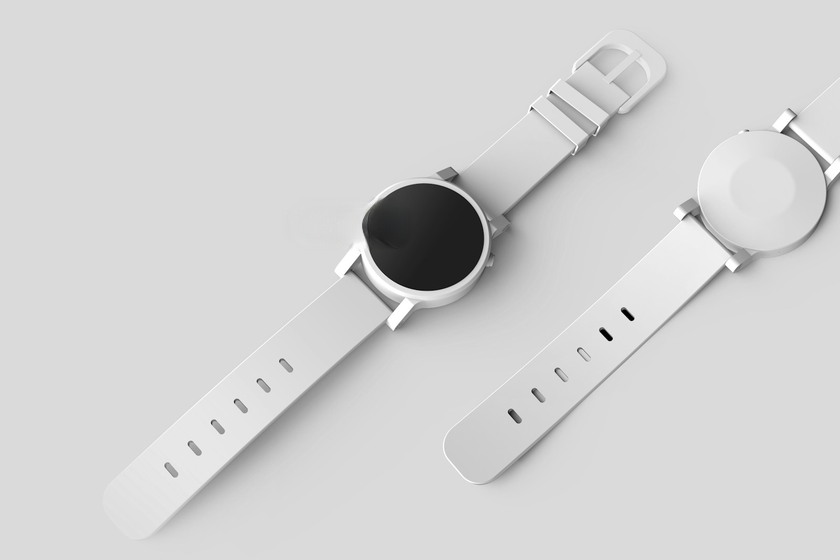 After
After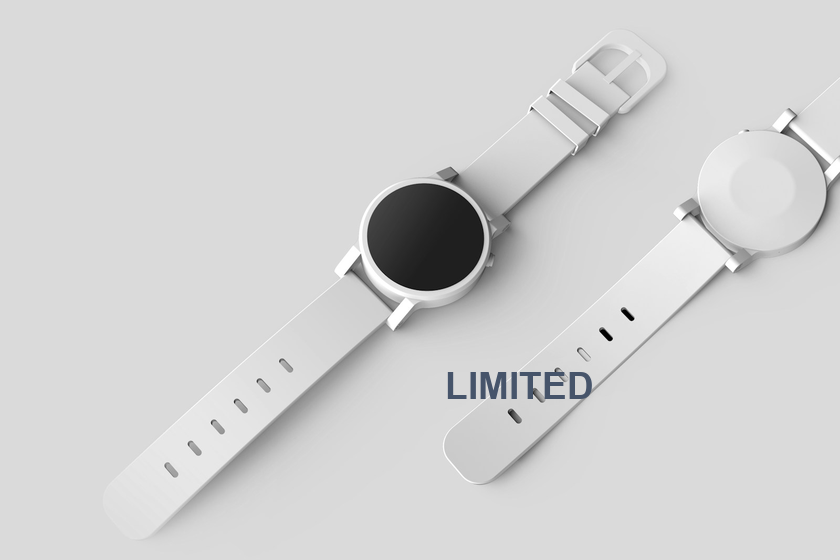 Before
 After
AfterText was added to licensed source photos for these tests. The results were made with the local model available in the tool. Review your own image before saving; detailed areas can need a second edit.
What to review before you reuse the image
A product image is often viewed at multiple sizes: a listing thumbnail, collection card, product page, advertisement, or social graphic. A repair that looks fine at thumbnail size can still be visible when the image is enlarged.
Before reuse, inspect:
- the border between the product and the background
- straight packaging lines and rounded corners
- reflective metal, glass, gloss, and transparent materials
- fabric, grain, stitching, or repeated patterns
- shadows and highlights that pass through the former text area
The tool is designed to remove text from the selected region, not to redesign the product, change packaging claims, or generate a different item.
Product image and privacy facts
- Input: JPG, PNG, and WebP
- Maximum file size: 20 MB
- Maximum image size: 24 megapixels
- Output: JPG or PNG
- Processing: the image, selection, filename, and result stay in your browser
- Account: not required
Frequently asked questions
Can I remove old promotional text from my own product image?
Yes. If you own the image or have permission to edit it, you can brush over an outdated sale line, campaign headline, or temporary label and rebuild that selected area.
Can I remove text without changing the product itself?
The best approach is to keep the brush off the product whenever possible. When text touches the product edge, use a smaller brush and inspect the result closely. The tool rebuilds the selected pixels, so anything included in the mask can be changed.
What product backgrounds are easiest to clean?
Plain studio backgrounds, soft gradients, blurred surfaces, and simple repeating textures are easier to review. Detailed packaging, hair-like fibers, transparent materials, complex reflections, and text that crosses the product are harder cases.
Can I remove a watermark or another seller’s branding?
Do not use this tool to remove watermarks, rights-management marks, or branding from images you do not have permission to alter. Use product images you own or are authorized to edit.
Is my product image uploaded?
No. The product image and selected mask stay in your browser during processing.
Clean up your product image
Open an authorized product photo, select the temporary text you no longer need, and review the product edges before downloading the cleaned image.